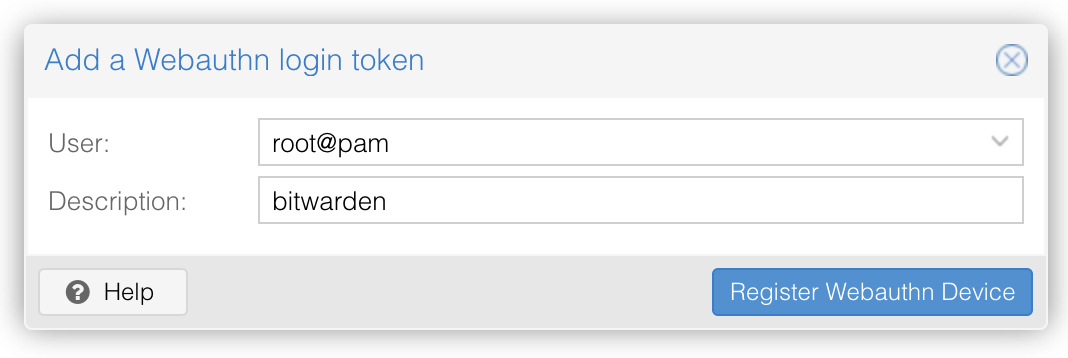
Proxmox supports 2FA authentication, and it should be used to secure access to any accounts.
To enable it, you need to do two things:
- Configure WebAuthn options
- Enroll your Passkey
Proxmox VE
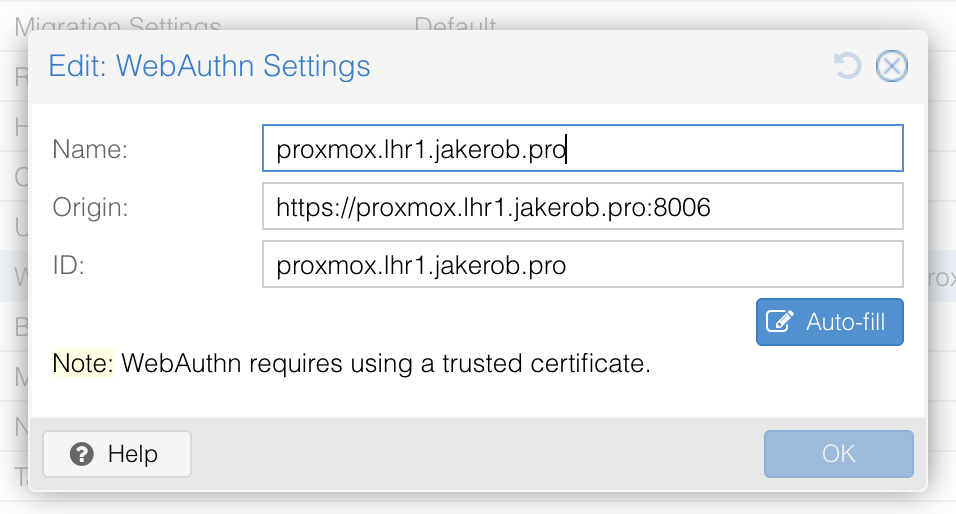
1. Configure WebAuthn options
Go to Datacenter -> Options -> WebAuthn Settings
You can click "Auto-fill" to fill out the name and the ID.
You should specify an origin that matches how you access the Proxmox web interface.
2. Enroll your Passkey
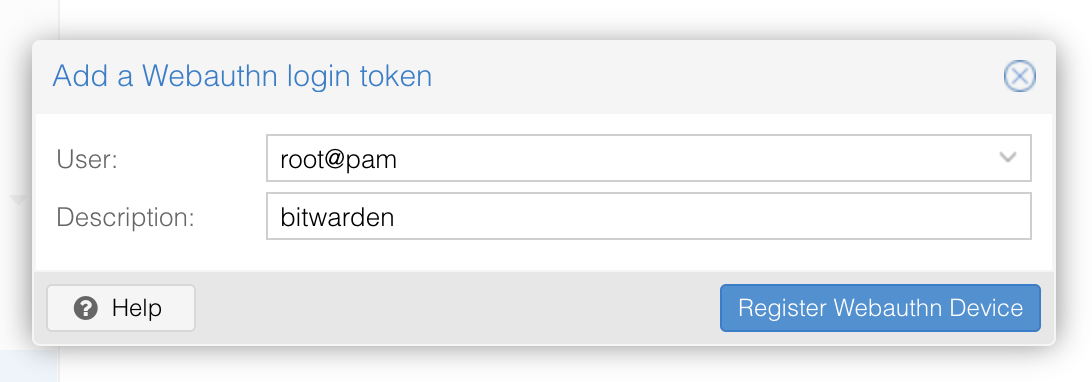
Go to Datacenter -> Permissions -> Two Factor -> Add -> WebAuthn
Now add the passkey by following the prompts.
Proxmox Backup Server
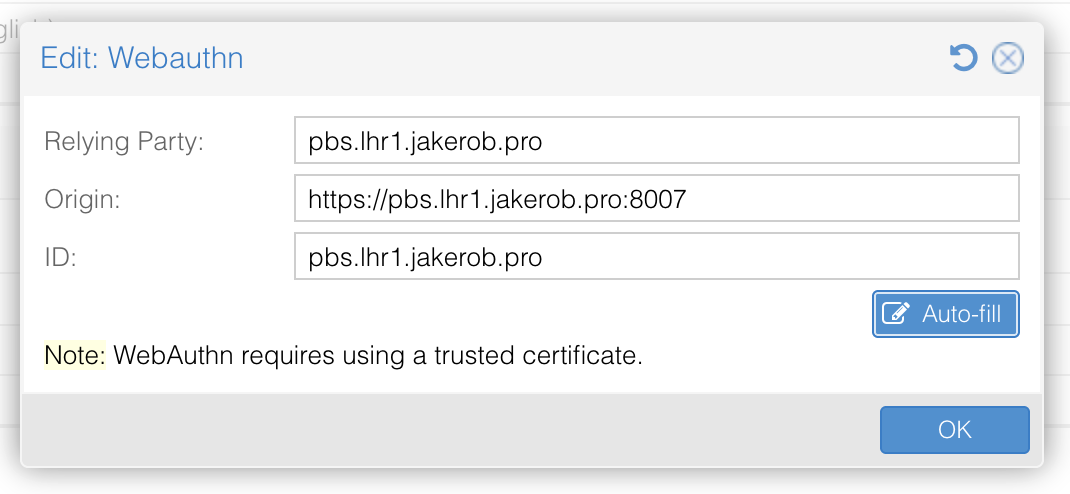
1. Configure WebAuthn options
Go to Configuration -> Other -> WebAuthn TFA
You can click "Auto-fill" to fill out the name, relying party, and origin.
2. Enroll your Passkey
Go to Configuration -> Access Control -> Two Factor Authentication -> Add -> WebAuthn
Now add the passkey by following the prompts.